
Quick Start
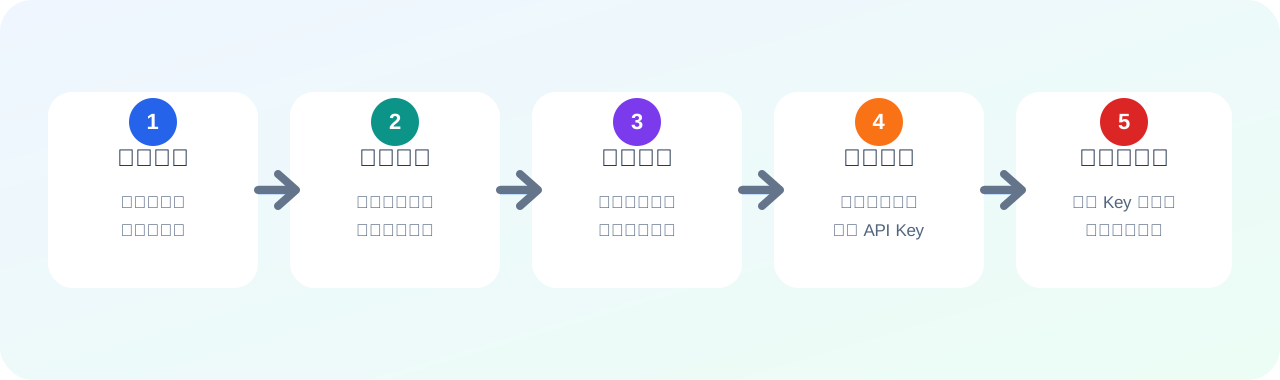
Follow this order: log in, check balance, choose a model, create a token, then configure and use the model in your client.
Flow Overview
- Log in: open the Qiuqiu Token console and confirm that your account is accessible.
- Check balance: open wallet management and confirm that the account has usable balance.
- Choose a model: decide which model, client, and budget you want to use.
- Create a token: create an API Key for the target model and group.
- Configure and use the model: paste the Base URL, API Key, and model into the client.
Step 1: Log In
Open the login page and sign in to the Qiuqiu Token console.
If you do not have an account yet, open the registration page first.
Step 2: Check Remaining Balance
After logging in, open Wallet Management and confirm that the remaining balance is enough for your next model calls.
Qiuqiu Token supports in-site recharge:
- Open Wallet Management.
- Check the current remaining balance.
- If the balance is insufficient, choose a payment method and complete payment.
- Return to Wallet Management and confirm that the balance has updated.
Verification:
- The console opens normally.
- Wallet Management shows the current balance.
- After recharge, the balance is not zero or the updated amount is visible.
Step 3: Choose the Model
Before creating a token, decide the final model you want to use. Different models, clients, and groups may have different prices, multipliers, speed, and stability policies.
Answer these questions first:
- Which tool will use this token: Codex, Claude Code, Claude Desktop, Gemini CLI, Trae, or your own application?
- Is the target tool already installed?
- What is the main task: coding, long-form writing, image generation, data analysis, automation, or daily chat?
- What matters most: speed, stability, model authenticity, cost, or context length?
- What is the budget: small test or long-term high-frequency usage?
- Is the target model available in the selected group, and are the price and multiplier acceptable?
Verification:
- You know the model name to enter in the client.
- You know which token group to choose.
- The balance is enough for at least one test request.
Step 4: Create a Token
Open Token Management, click "Add Token", and create an API Key for the model and group you chose.
Check these fields:
- Name: use a clear purpose such as
codex-plus-demoorclaude-code-work. - Token group: choose by client, model, or pool. Do not choose
defaultby habit. - Expiration: beginners can choose "never expire" to avoid debugging interruptions.
- Quota: start with a small test quota, then adjust after verification.
Do not choose default
default is not a dedicated pool for Codex, Claude Code, and similar clients. Choosing the wrong group can cause model mismatch, client failure, or unexpected billing.
After submission, return to Token Management and copy the token from the row copy icon or "copy selected token". That value is the API Key for the client.
For screenshots, see Create an API Token.
Step 5: Configure and Use the Model
Most clients need three values: Base URL, API Key, and model name.
OpenAI-compatible clients need /v1. Claude-compatible clients should not manually append /v1 to the Base URL.
https://api.qiuqiutoken.com/v1https://api.qiuqiutoken.comCommon choices:
- Codex, Gemini CLI, Trae, and your own OpenAI-compatible interface:
https://api.qiuqiutoken.com/v1. - Claude Code and Claude Desktop:
https://api.qiuqiutoken.com.
Backup API domains:
https://api.qiuqiutoken.comhttps://api2.qiuqiutoken.comhttps://api.qiuqiutoken.jiawuyu.comhttps://api2.qiuqiutoken.jiawuyu.comUse the token copied in step 4 as the API Key. Use the model name decided in step 3. Available models, prices, and multipliers are subject to the official marketplace and console.
Next entry points:
- Windows users without Codex Desktop or Codex CLI: use AI Tool Auto Installer.
- Multi-client setup: use CC Switch Quick Config.
- Specific client setup: open CLI Guides.
- Trae and other third-party clients: open Third-Party Clients.
curl Verification
For OpenAI-compatible APIs, replace PASTE_YOUR_API_KEY with the token you copied.
curl https://api.qiuqiutoken.com/v1/models \
  -H "Authorization: Bearer PASTE_YOUR_API_KEY"
For Claude-compatible APIs, do not add /v1 to the Base URL yourself; the request path provides it.
curl https://api.qiuqiutoken.com/v1/messages \
  -H "x-api-key: PASTE_YOUR_API_KEY" \
  -H "anthropic-version: 2023-06-01" \
  -H "content-type: application/json" \
  -d "{\"model\":\"claude-sonnet-4-20250514\",\"max_tokens\":32,\"messages\":[{\"role\":\"user\",\"content\":\"hello\"}]}"
Next
- Screenshot token guide: Create an API Token.
- Specific client setup: CLI Guides.
- Manage multiple tools: CC Switch Quick Config.