
Claude Desktop
Claude Desktop is the desktop entry for Claude. The latest UI may also appear as Claude Cowork. Use the steps below to configure third-party inference in the app.
Tip
Install the latest Claude Desktop / Claude Cowork first. On first launch, do not log in immediately. If the top-left menu is hard to focus, click the email input first, then press Tab to move focus to the menu and press Enter.
Steps
1. Install and open the latest Claude Desktop / Claude Cowork
Install from the download button above, then open the app.
2. Do not log in on first launch
On the welcome page, skip the default login flow and prepare to open the developer menu.
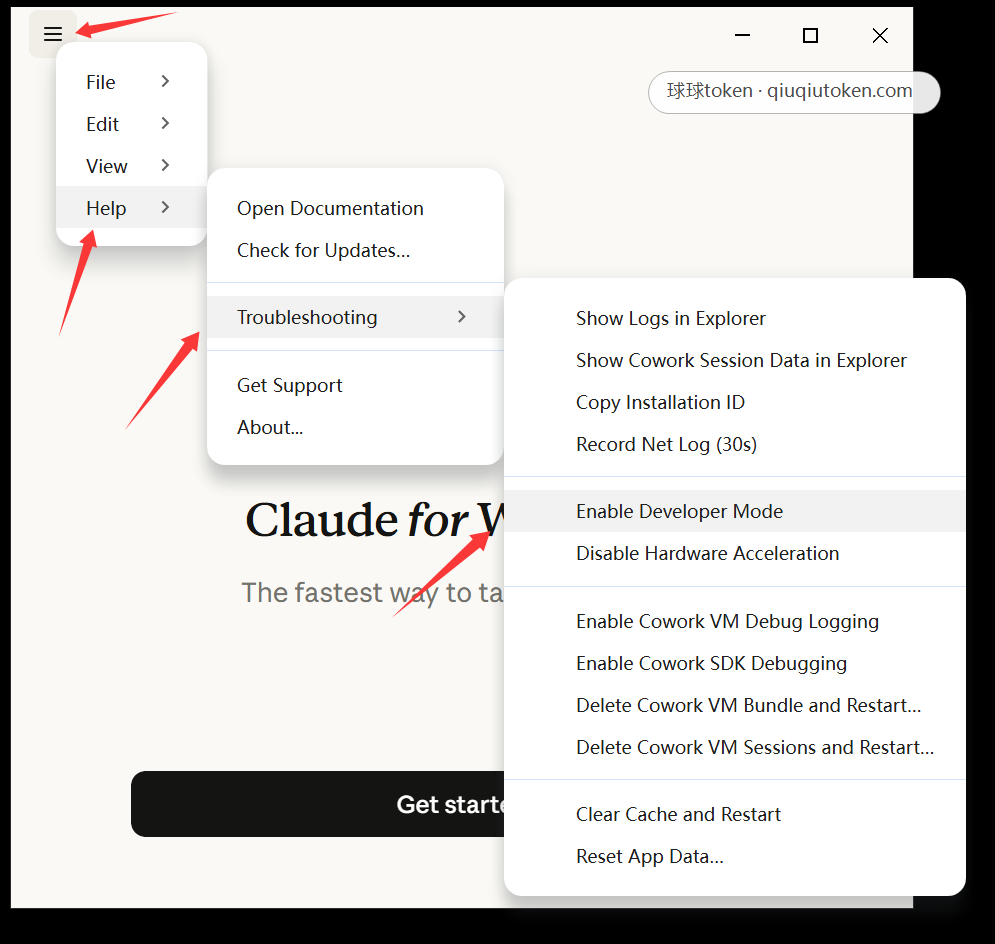
3. Open Help -> Troubleshooting -> Enable Developer mode
Use the top menu to enable developer mode.
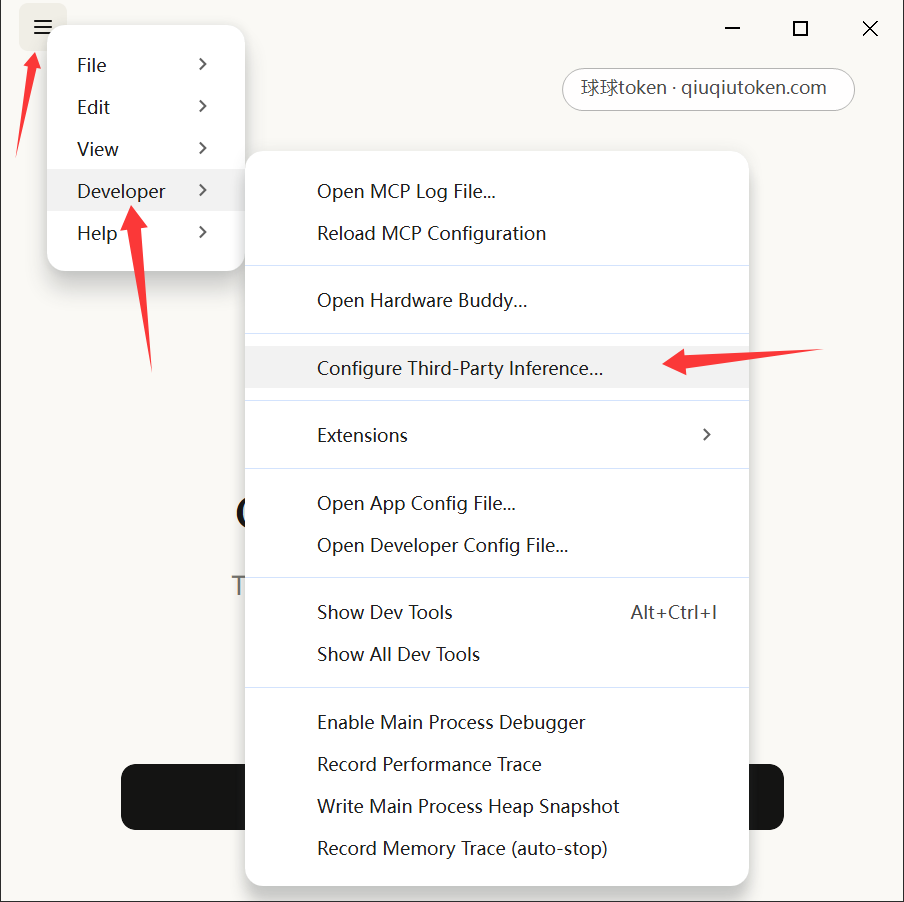
4. Open Developer -> Configure third-party inference
After developer mode is enabled, open Developer -> Configure third-party inference.
5. Choose Gateway as Provider
Switch Provider to Gateway.
6. Fill Base URL / API Key / Auth scheme / Models
Base URL: use a Claude-compatible address such ashttps://api.qiuqiutoken.com. Do not manually append/v1.API Key: paste your token.Auth scheme: chooseauto,bearer, orx-api-keyaccording to your address and key.Models: entersonnet,haiku,opus, or the actual model alias you use.
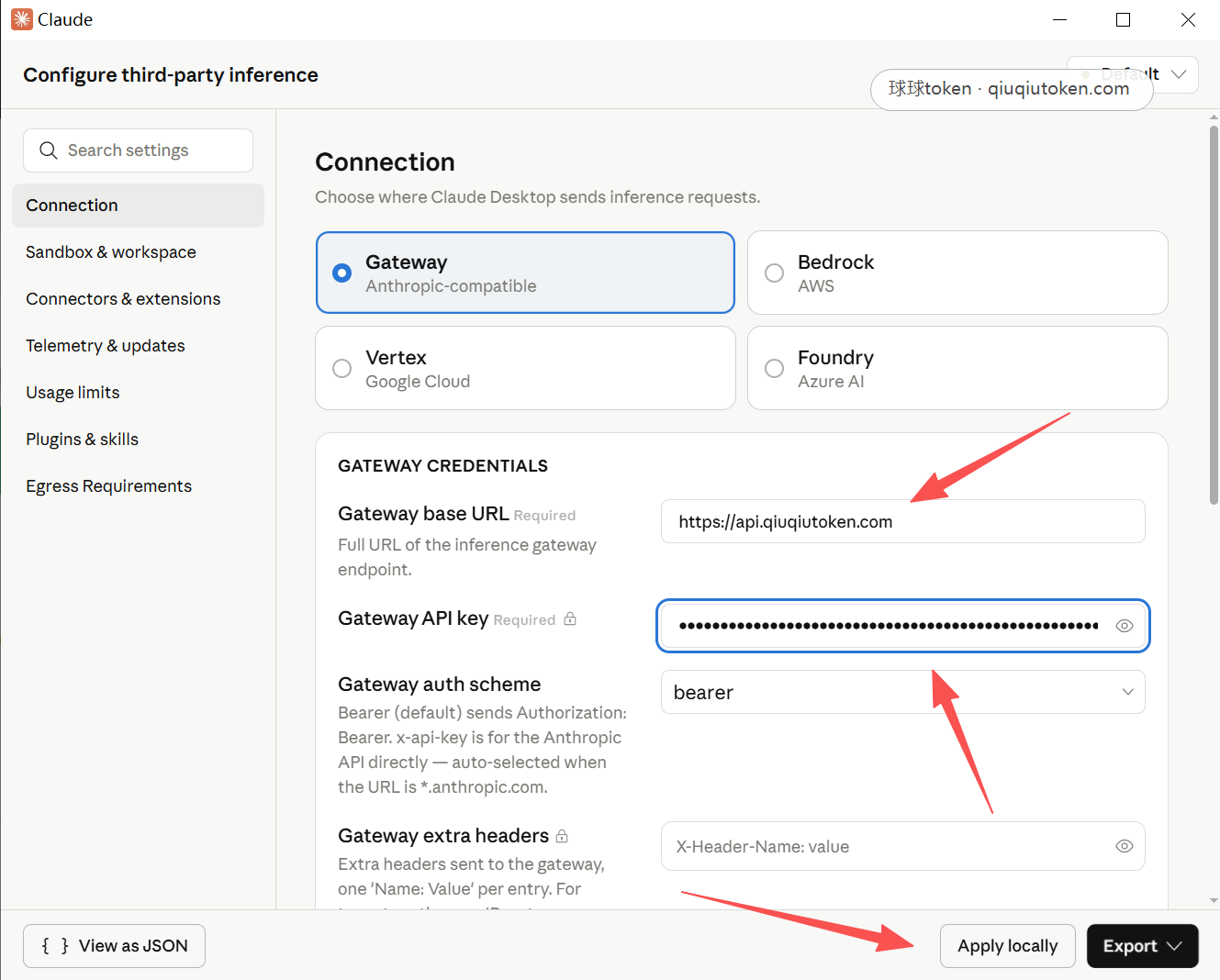
7. Click Apply locally
Apply this third-party inference configuration to the local app.
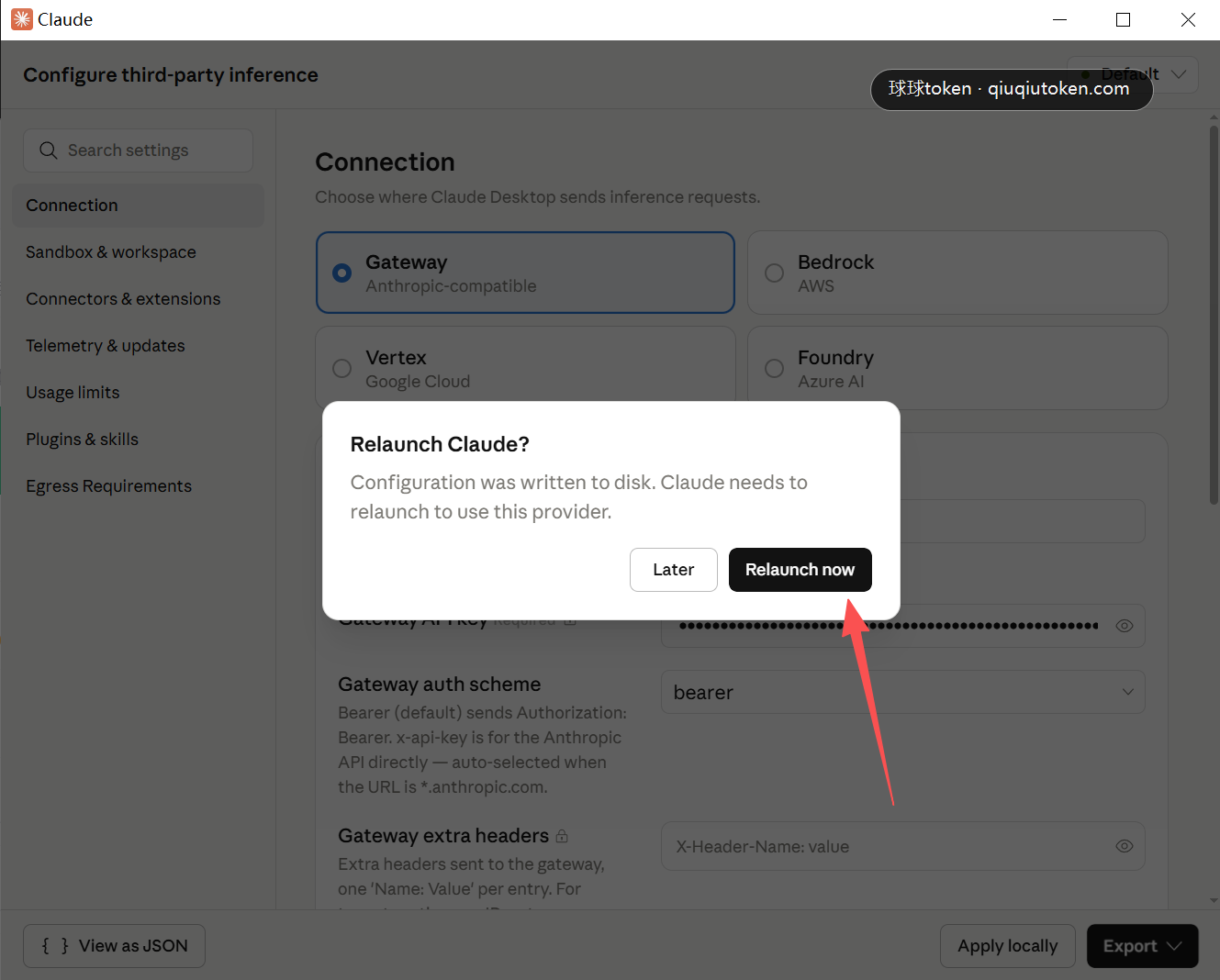
8. Restart Claude Desktop
Restart the app when prompted so the new configuration takes effect.
Verification
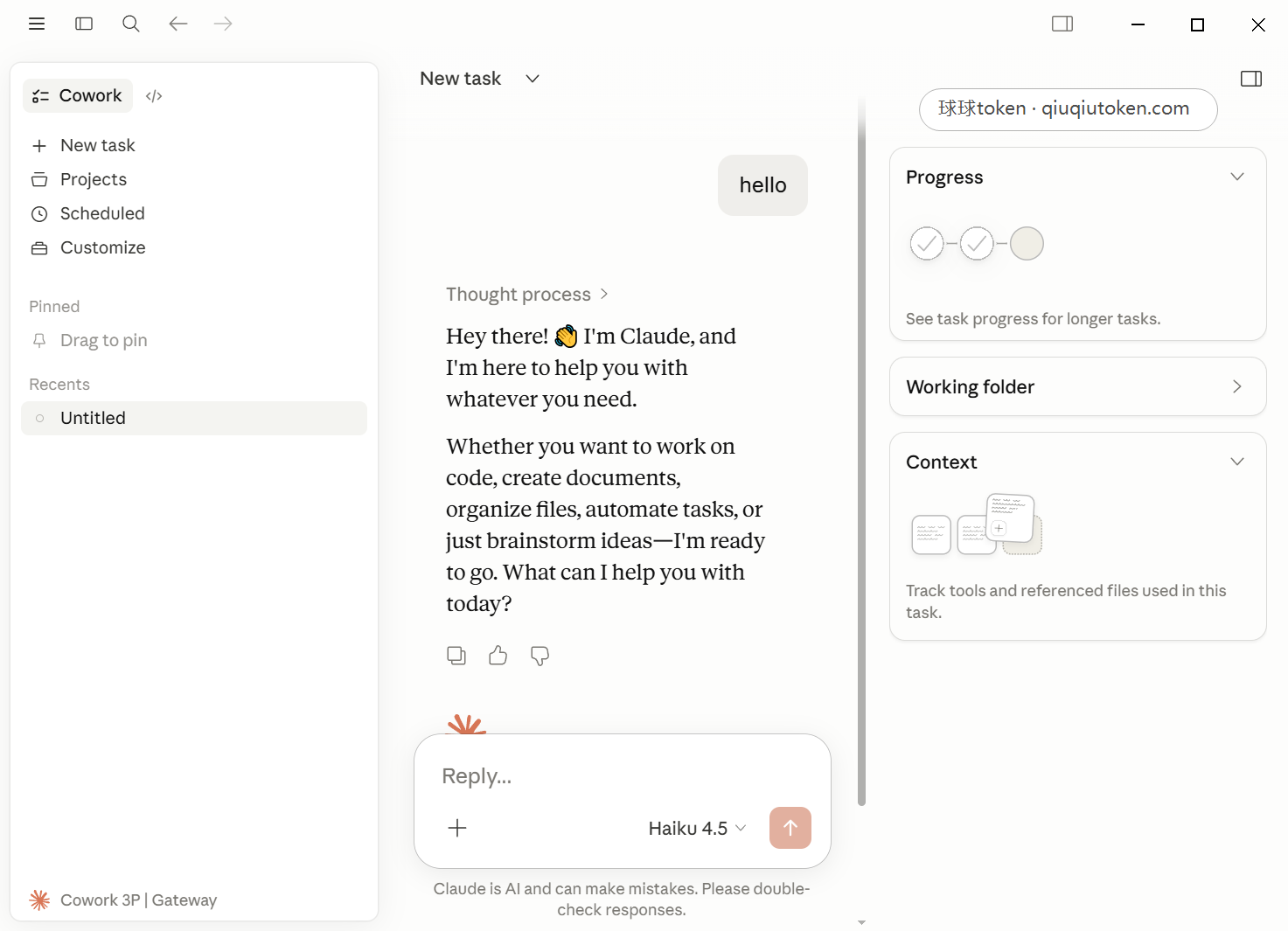
- The app shows a status similar to
Cowork 3P | Gateway. - A simple message such as
helloreturns normally. - The console shows the corresponding request or usage.
- The app does not repeatedly return to the default login flow.
FAQ
- Menu cannot be opened: click the email input, press
Tabto focus the top-left menu, then press Enter. - Already logged in by mistake: reopen third-party inference configuration and run
Apply locallyagain. - It still uses the default service after restart: confirm Provider is still
GatewayandApply locallywas clicked before restart. - Authentication fails or model is unavailable: check the address, token, and model fields.